Why Your Phone Battery Drains Fast (Science Explained + 7 Fixes That Actually Work)
 Shubham Thakur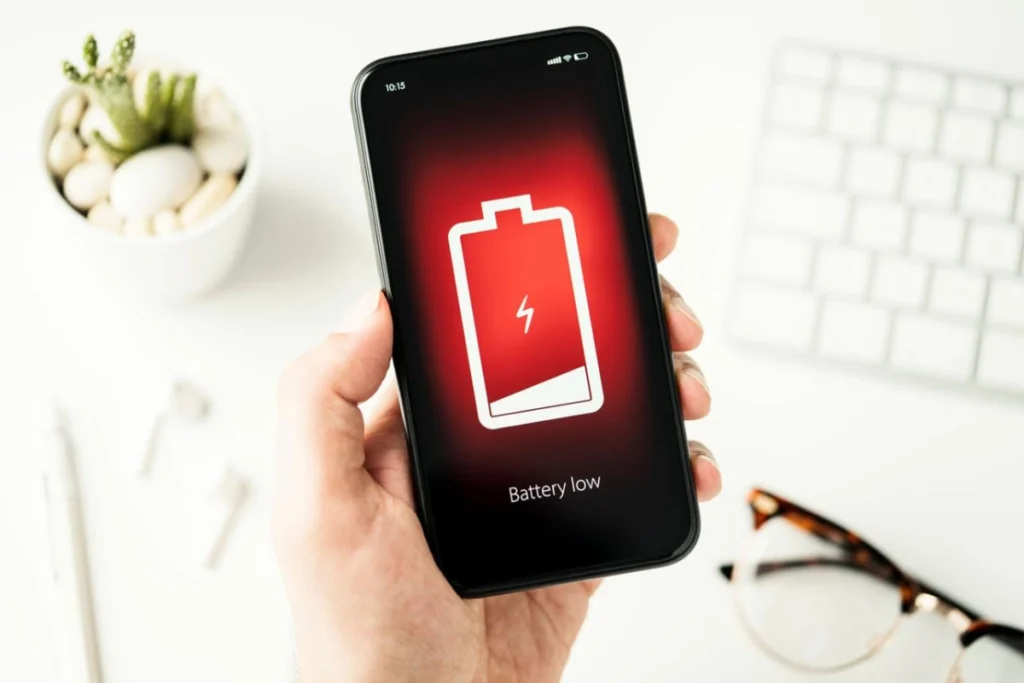
Introduction
A few of my friends recently told me something interesting that they fully charge their phones in the morning, yet by early afternoon, the battery drops to around 20%.
Have you ever experienced the same thing?
This is not just your problem. One of the most common issues that we all experience now is rapid battery drainage. And the worst part is, this issue tends to arise even when we have just purchased our smartphone.
What I’ve noticed is that your battery isn’t just ‘bad. There’s actual science behind why it drains so quickly. And once you understand what’s really happening, fixing the problem becomes much easier.
In this guide, I’ll explain why your phone runs out of power so fast and share 7 practical fixes that actually work. I’ve personally tried these myself, and honestly, they made a noticeable difference.
First, Let’s Understand the Science Behind Battery Drain
The battery inside your phone is based on lithium-ion technology, which means that the battery harnesses energy chemically and gives it to you each time you use your gadget.
But here’s the catch: anything that increases processing load, generates heat, or keeps apps running in the background will drain that energy faster. So whether it’s heavy apps, high screen brightness, or constant background syncing, all of it puts extra pressure on your battery, causing it to lose charge more quickly than you’d expect. Most modern smartphones use lithium-ion batteries, which typically start degrading after 300–500 charge cycles.
Common Signs Your Battery Is Draining Too Fast
Before jumping to fixes, check if you’re facing these signs:
- Battery drops quickly even when idle
- Phone heats up during normal use
- Charging takes longer than usual
- Battery percentage jumps suddenly
7 Real Fixes That Actually Work
1. Reduce Screen Brightness
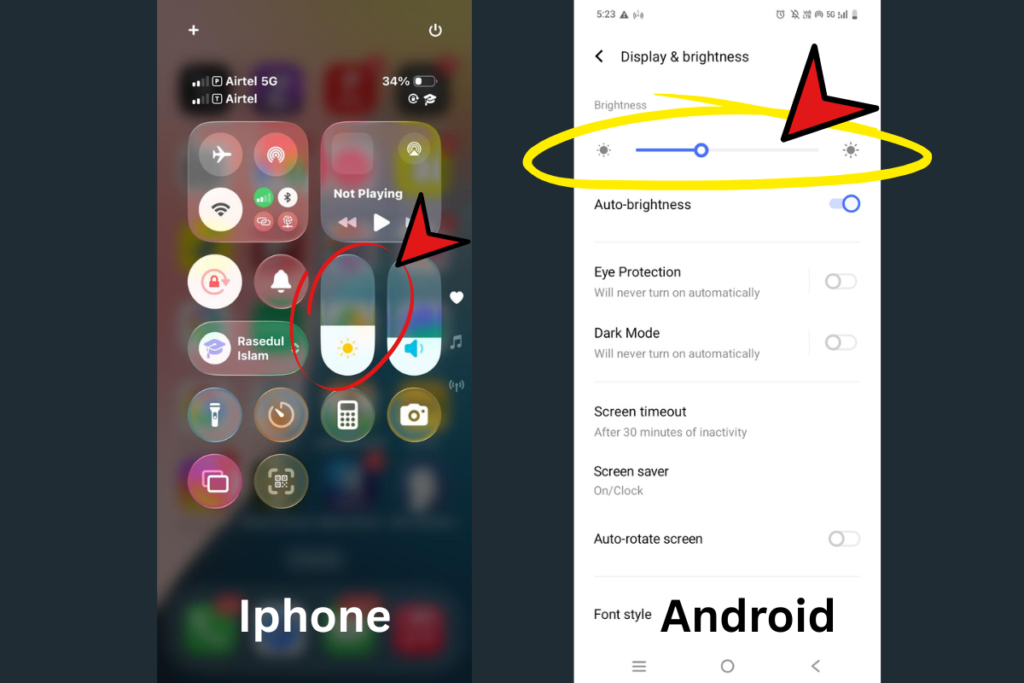
Your display is the biggest battery drainer, especially on modern smartphones where high brightness and vivid screens consume more power than anything else. If you want to reduce this, enable auto-brightness so your phone adjusts based on lighting, keep brightness between 30–50% for daily use, and switch to dark mode, particularly effective on OLED screens.
For example, when I tried this myself, I saw nearly a 10–20% improvement in battery life just by lowering my screen brightness and using these settings regularly.
2. Close or Limit Background Apps
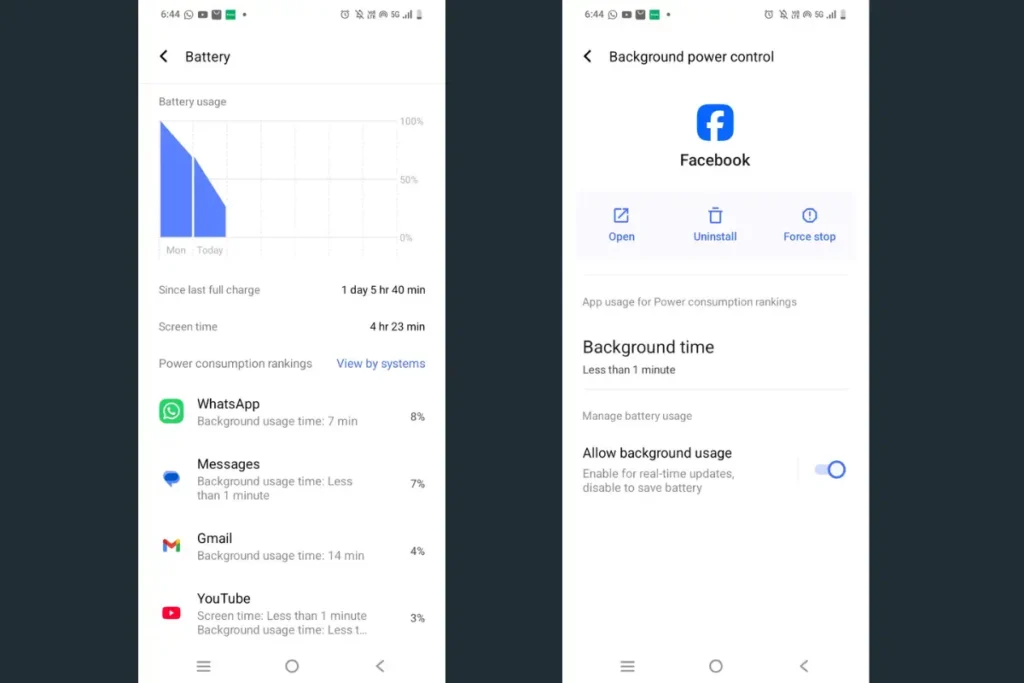
Some apps keep running even when you’re not actively using them. It silently draining your battery in the background without you realizing it.
How I fixed it myself:
Go to Settings → Battery → App usage
And then restrict background activity for heavy apps like:
- Social media
- Shopping apps
- Gaming apps
3. Fix Your Charging Habits
Best practices:
- Keep battery between 20% and 80%
- Avoid charging overnight regularly
- Use original or certified chargers
4. Avoid Phone Overheating
Heat is the largest culprit of battery deterioration on your cell phone as heating increases the rate of reaction in the battery, which not only causes the battery to discharge faster but also damages it over an extended period.
My Personal Recommendation:
- Avoid using phone while charging
- Don’t leave it in sunlight or hot cars
- Remove heavy cases if overheating
If the issue still continues, here are 3 advanced fixes that helped me personally:
5. Find Hidden Battery Killers Using “Wake Locks”
In case your smartphone battery is draining quickly despite not being used, then wake locks could be the cause.
Many individuals tend to look at their Battery Usage, yet this feature only displays the active applications. There are applications that will have your CPU up and running in the background, and this is known as a wake lock.
How to find the culprit:
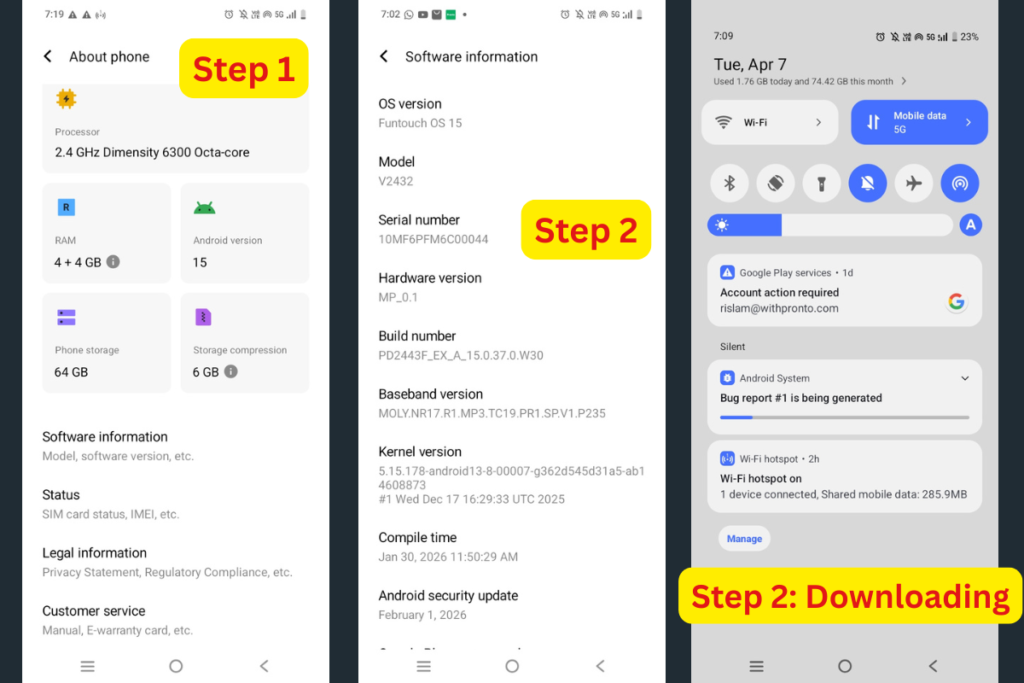
First, enable Developer Options: Go to Settings → About Phone → Tap Build Number 7 times.
Then: Open Developer Options → Tap Take Bug Report → Full Report
Once it’s ready, open the file and search for “WakeLock”
After that look out for applications that have a large number of counts or that stay awake for a very long time, as this is an indication that your device is being drained by an application that is consuming more power than usual. If the application has a high number of counts, it indicates that it runs in the background, despite not using it at all.
Either remove the application or disable its background activity using Battery > Background Usage Limits (Deep Sleep).
6. Lock the “Radio Band” to Prevent Signaling Storms
If your phone is placed in an area where there is a poor 5G signal strength, the radio in your phone will increase voltage levels to try and locate an antenna. The “signaling storm” will reduce your battery by about 15%. So you have to fix that your phone should stay on a stable 4G/LTE band if 5G is “flickering” in your area.
How to fix it:
Step 1: Open Phone Dialer and enter *#*#4636#*#* (works on most android models).
Step 2: Scroll down and select “Phone Information”.
Step 3: Select “Set Preferred Network Type.”
Switch the option from “NR/LTE” (5G/4G) to “LTE only”. This will stop the phone’s modem from continuously “pinging” to look for a 5G network, thereby reducing chemical heating within the battery.
7. Stop Sensors from Draining Your Battery
The phone uses several sensors including gyroscopes, accelerometers, and proximity sensors throughout its operation. The trouble is that certain applications repeatedly access these sensors despite the user having no need for them. As a result, the phone can never enter deep sleep mode.
Now Fix It:
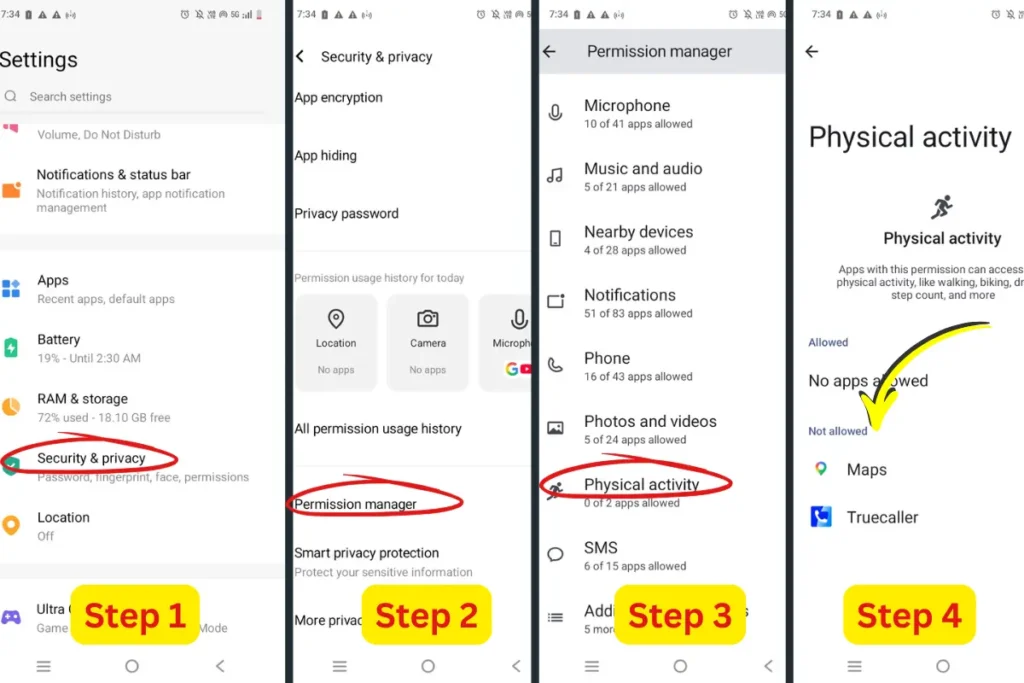
Step 1: Settings > Privacy > Permission Manager
Step 2: Click Physical Activity (or “Sensors” for some devices). You’ll see apps like social media, shopping apps, or browsers
Step 3: Turn their permission to “Don’t Allow”
Common Mistakes You Should Avoid
- Installing too many apps
- Using live wallpapers constantly
- Ignoring app permissions
- Always keeping mobile data ON
- Using fake or low-quality chargers
The Phone Battery Saving Checklist I Personally Use and recommend you
Daily Basics
☐ Keep brightness in check – I usually leave it on auto or around 30–50%
☐ Use dark mode – especially helpful if your phone has an OLED screen
☐ Charge smartly – try to keep it between 20% and 80%
☐ Avoid heat – if your phone gets warm, remove the case and don’t use it while charging
Apps & Settings
☐ Limit background apps – I check battery settings and restrict heavy apps like social media
☐ Clean permissions – remove sensor or activity access from apps that don’t really need it
☐ Declutter apps – uninstall what you don’t use and avoid live wallpapers
Pro-Level Fixes
☐ Stabilize network – if 5G keeps switching, set it to LTE only
☐ Check hidden drain – use developer options to find apps keeping your phone awake
☐ Stop sensor overuse – disable unnecessary sensor access so your phone can properly rest
Also Read: Google March 2026 Core Update: Early Impact on Indian Websites
Also Read: Best Laptop for Students in India 2026: Complete Buying Guide (Budget to High-End)
Conclusion
At the end of the day, fast battery drain isn’t just bad luck it’s usually a combination of small habits and hidden background processes.
When you comprehend the science involved and take steps to address the issue, you will see significant improvement. Personally, I have observed improved battery life after implementing these simple changes consistently.
FAQs
Does using fast charging reduce battery life over time?
Fast charging, by itself, is not damaging, although it does cause more heat than regular charging. This could hasten the deterioration of the battery with time. Fast charging is okay, but only when necessary.
Can software updates affect battery drain?
Yes, in both good and bad ways. Some upgrades optimize your battery life, but some may cause problems which will worsen your battery’s life. In case your battery runs out faster after upgrading your system, look for possible fixes.
Does using Wi-Fi save more battery than mobile data?
In most cases, yes. Wi-Fi consumes less power than mobile data, especially in areas with weak cellular signals. However, constantly switching between Wi-Fi and mobile data can also increase battery usage.
Do widgets and home screen customization drain battery?
Yes, especially dynamic widgets such as weather, news, or live update apps. They constantly pull data from the web in the background, which consumes CPU and Internet activity, resulting in rapid battery depletion.
When should I replace my phone battery?
When your phone’s battery condition is less than 80% or experiences random shutdowns, overheating, or excessively quick depletion despite optimization, then it shows that the battery is worn out and might require replacement.